

Connect Beds24
Link PingTeo to Beds24 using your invite code.
PingTeo uses Beds24 as its source for properties, reservations, and guest messages. Connecting is done once per account using an invite code.
Get your Beds24 invite code
- Log in to Beds24.
- Open the API settings page: https://beds24.com/control3.php?pagetype=apiv2.
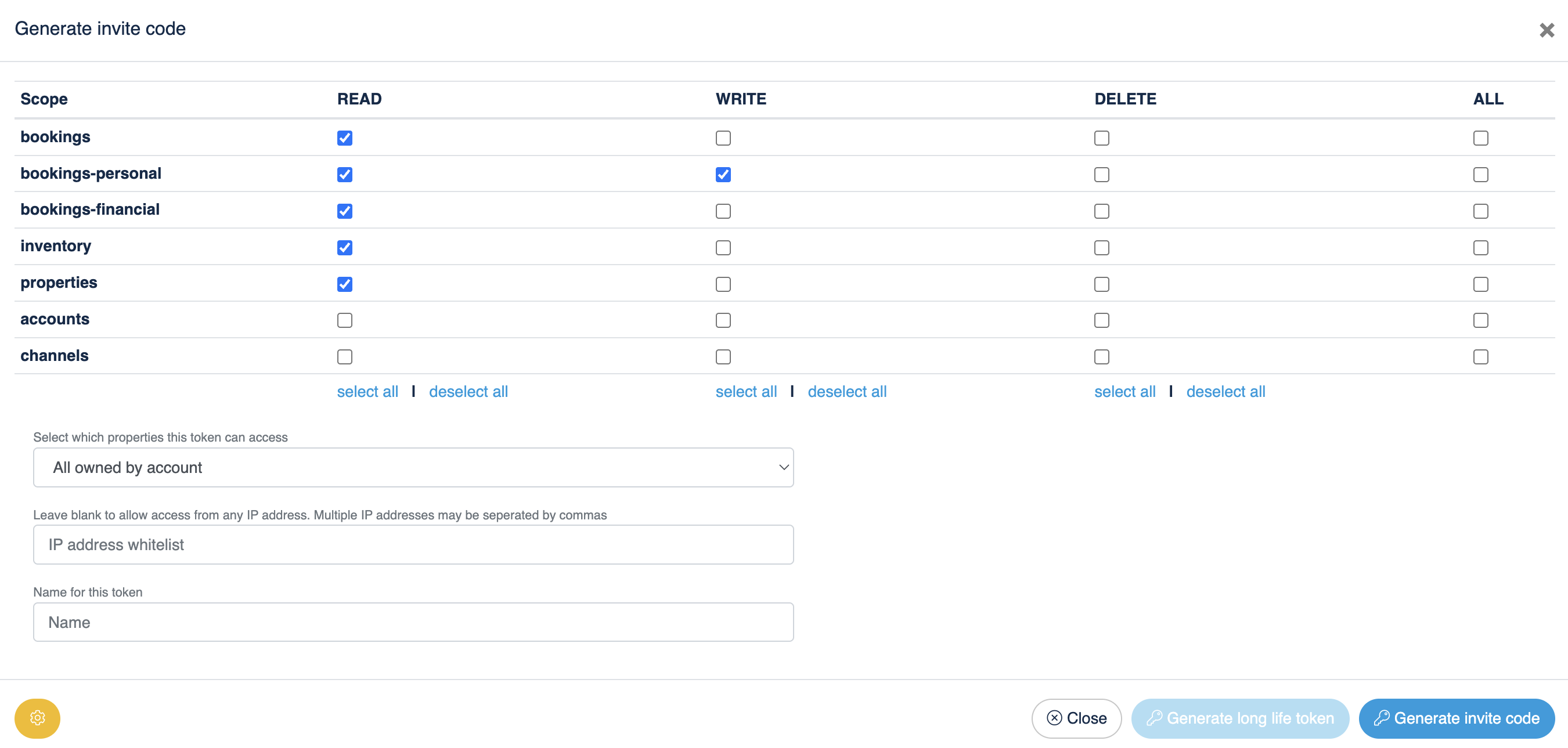
- Click Generate invite code to open the configuration window.
- In the permissions table, enable at least:
- bookings — READ
- bookings-personal — READ and WRITE (so PingTeo can read guest messages and send replies)
- bookings-financial — READ
- inventory — READ
- properties — READ
- Under "Select which properties this token can access", choose All owned by account (or the set of properties you want to use with PingTeo).
- Optionally give the token a name (e.g. "PingTeo") in "Name for this token".
- Click Generate invite code. Copy the code and keep it private; it authorizes PingTeo to access your Beds24 data.
Connect in PingTeo
- In PingTeo, go to Onboarding (first-time setup) or Settings → Beds24.
- Paste the invite code into the field and submit.
- PingTeo will exchange the code for tokens and fetch your properties. When you see “Connected” and a list of properties, the link is active.
After connecting
- You can select which properties to manage in PingTeo (onboarding or later in Properties).
- Reservations and messages will sync via webhook (recommended) or scheduled sync.
- To disconnect or reconnect, use Settings → Beds24 and follow the options there.
Next: Invite code & sync — How sync works and when to use manual sync.