

Webhook setup
Configure the Beds24 webhook URL and secret so messages and bookings reach PingTeo in real time.
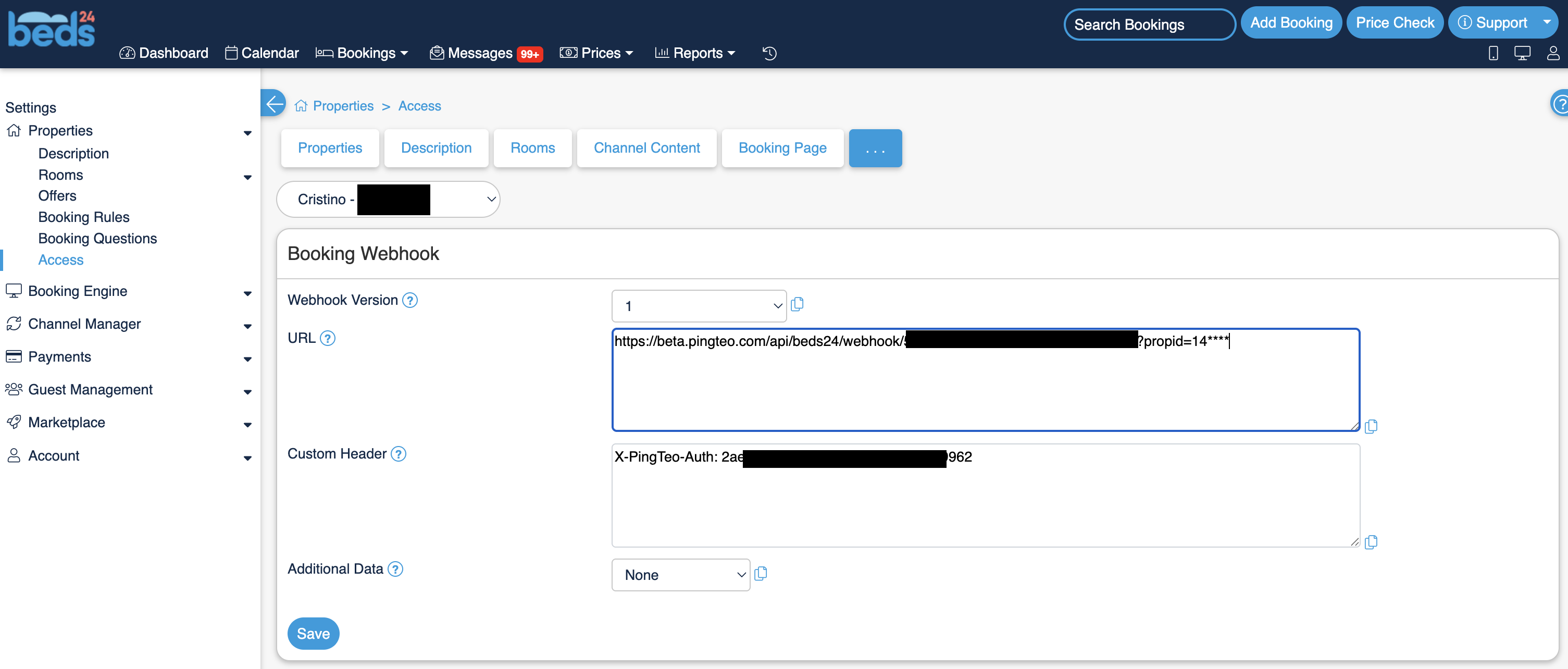
For real-time guest messages and booking updates, Beds24 must send webhooks to PingTeo. You need to set the URL and the Custom Header in Beds24 for the selected property.
Why webhooks
- Messages — When a guest sends a message, Beds24 can POST it to PingTeo immediately so the AI can reply without waiting for a scheduled sync.
- Bookings — New or updated reservations can be pushed so PingTeo’s list stays in sync.
Without webhooks, PingTeo relies on scheduled sync only; replies may be delayed.
Webhook URL format
The URL is unique per account (tenant). It looks like:
https://beta.pingteo.com/api/beds24/webhook/YOUR_USER_ID
YOUR_USER_ID— Your PingTeo user ID. You can find it in PingTeo (e.g. in Settings or in the webhook setup page if we show it there).
PingTeo may display this full URL in Settings → Beds24 or in the Guided setup after you connect. Copy it exactly into Beds24’s webhook configuration.
Where to set it in Beds24
In Beds24, go to the section where webhooks for your property is configured. Enter:
- URL — The full URL above.
- Custom Header —
X-PingTeo-Authheader.
Troubleshooting
See Troubleshooting Beds24 and Messages not syncing.
Next: Troubleshooting Beds24 — Common Beds24 connection and sync issues.